The CRM objects can be queried and rendered on HubSpot hosted content, allowing data to be shared between your business operations, website, and emails. Using the crm_object, crm_objects, and crm_associations HubL functions you can display and control logic based on your CRM object data.
The HubDB uses table columns to filter data but with the CRM Custom Objects, you can create properties like you do when creating a regular form.
Go to HubSpot Github to download the Hub - Home folder to your computer.
- Step 1: Get your personal access key and the API Key.
- Step 2: Upload the folder in your portal.
- Step 3: Go to your HubSpot portal to see if your custom object has been created
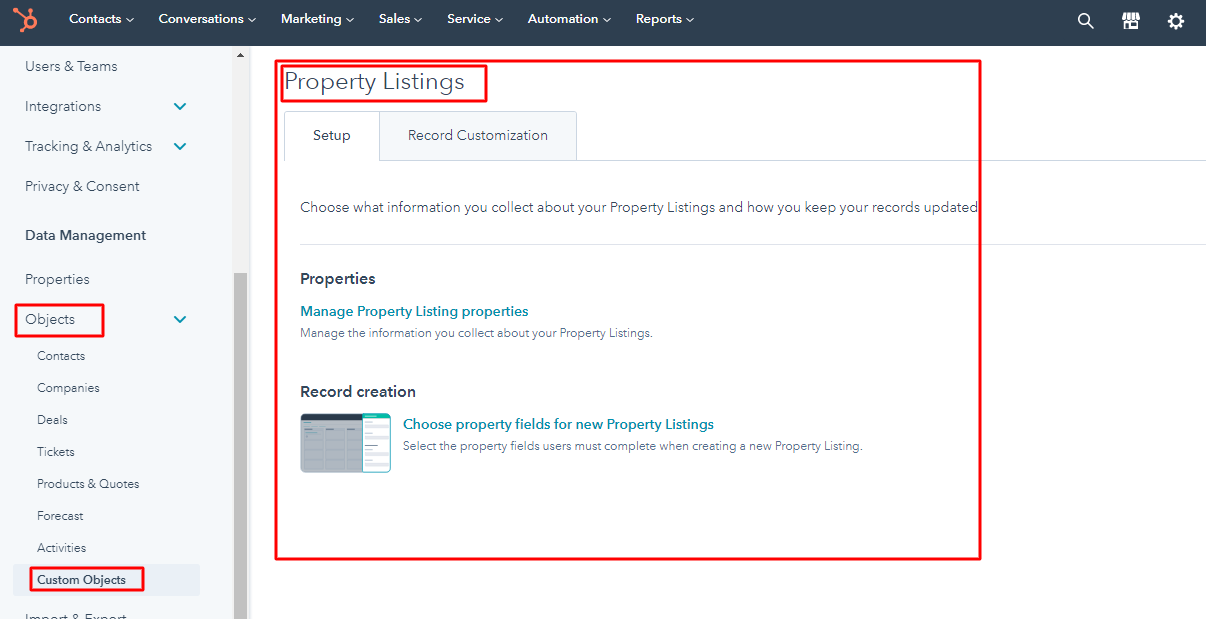
1. Property Listing
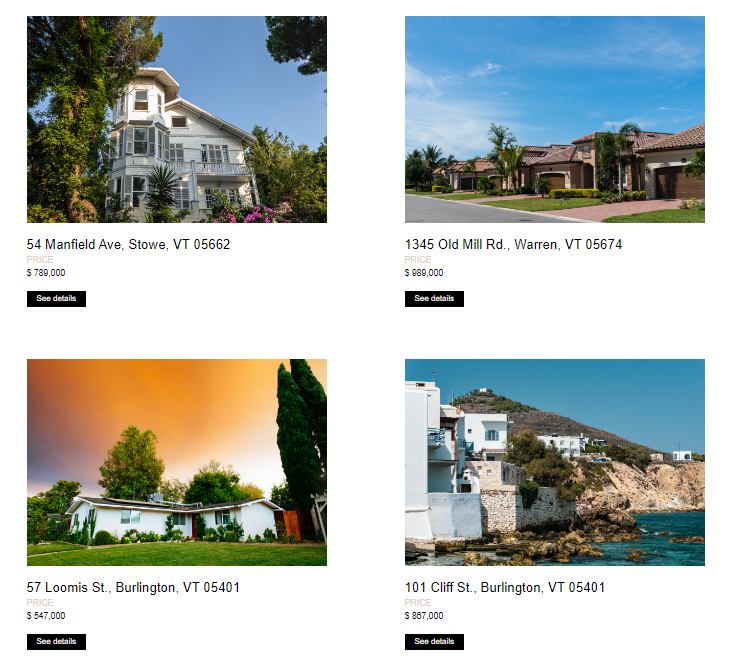
This is a basic property listing that pulls content from the content created in the CRM custom object called Property Listing.
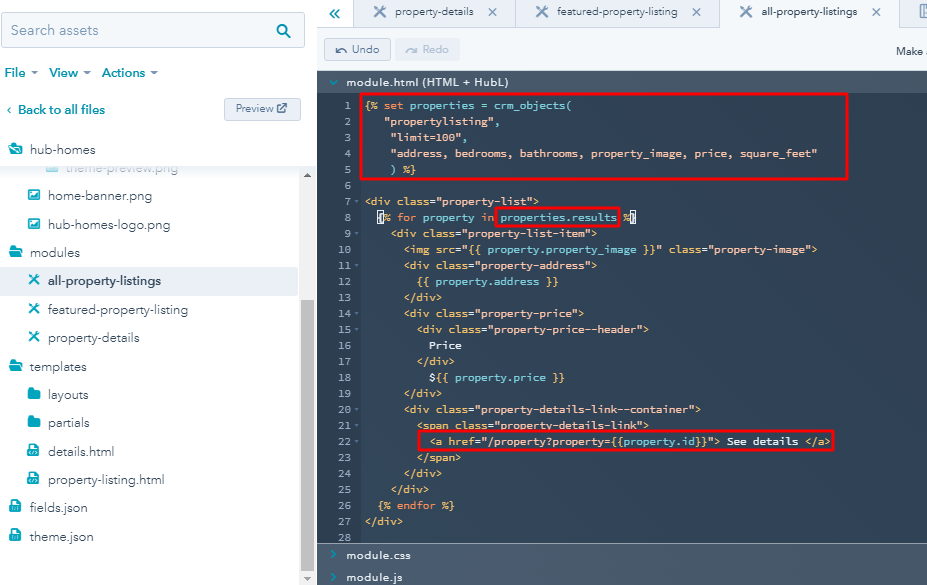
Here is the code showing how to pull content from the CRM Custom Objects called Property Listing by creating a custom module named all-property-list. The code looks similar to HubDB and the difference is that the CRM Custom Objects JSON content gets pulled by adding .results as for example properties.results and last and not least to view the single property estate dynamically you will use this path formula dynamic_page_pathname/parameter_name=value_id as demo below /property?property={{property.id}}
2. Property Details - Dynamic Page
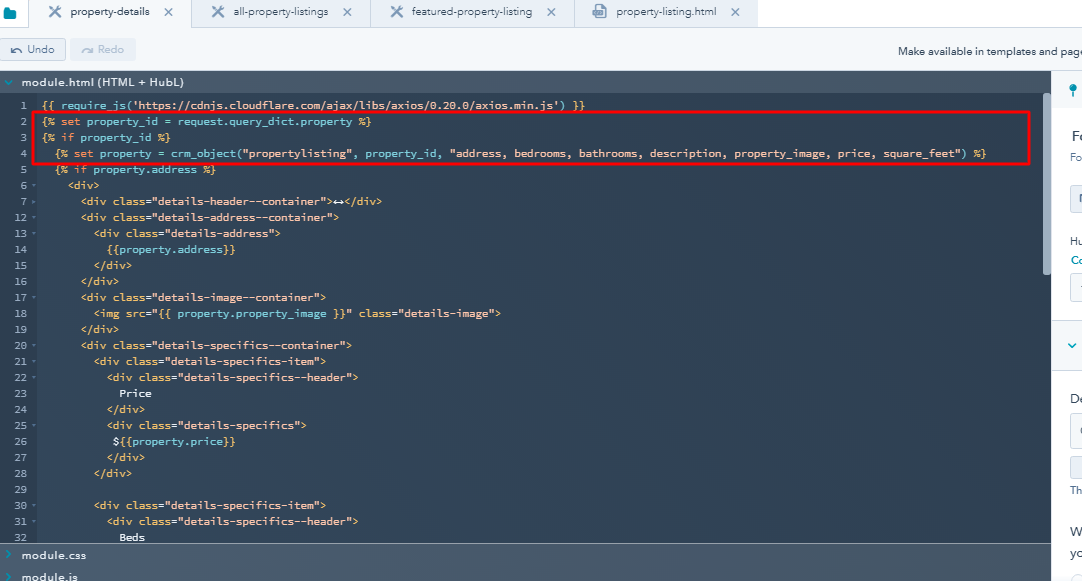
This is a basic property details page that pulls a single record from the content created in the CRM Custom object called Property Listing.
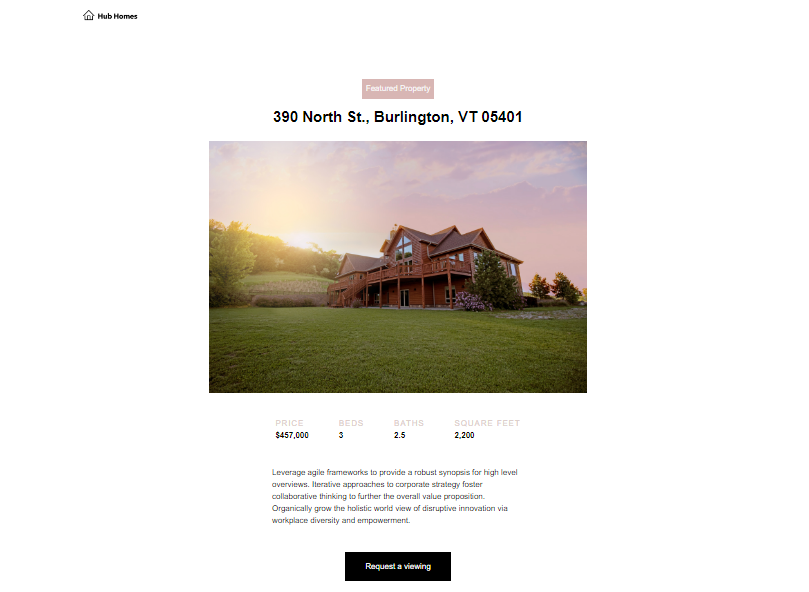
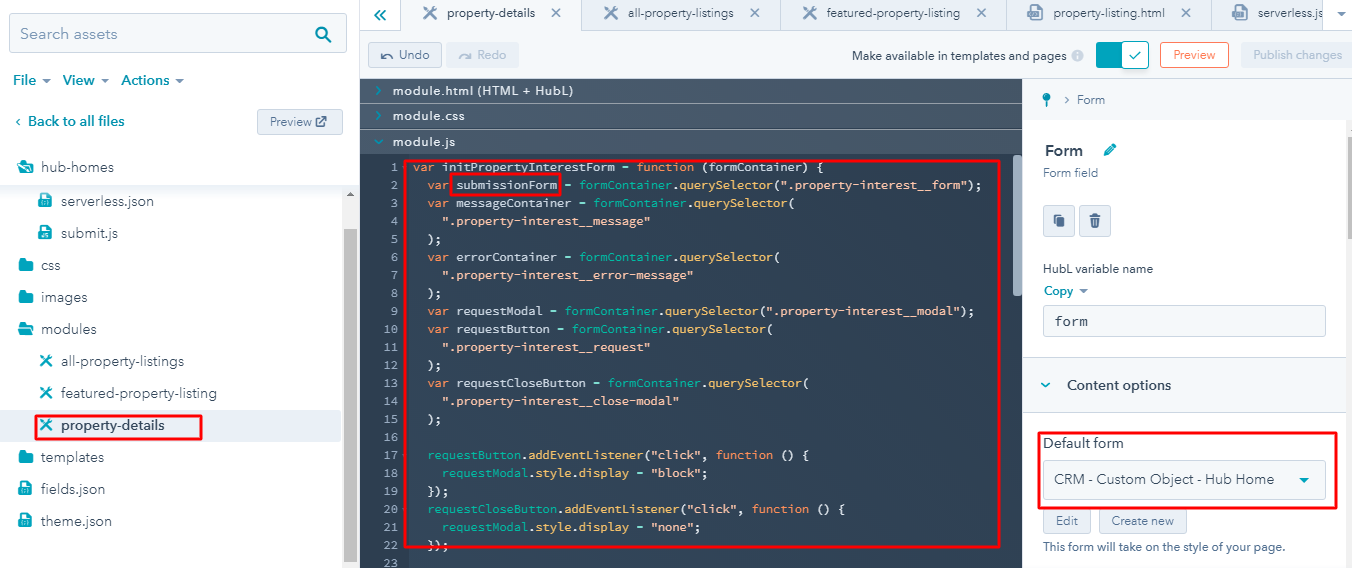
Here is the code showing how to pull a single record from the CRM Custom Objects called Property Listing by creating a custom module named property-details and you use the parameter property and property id value that came from the All Property Listing Module. The single property estate dynamically pulled using this path formula dynamic_page_pathname/parameter_name=value_id as demo below /property?property={{property.id}}
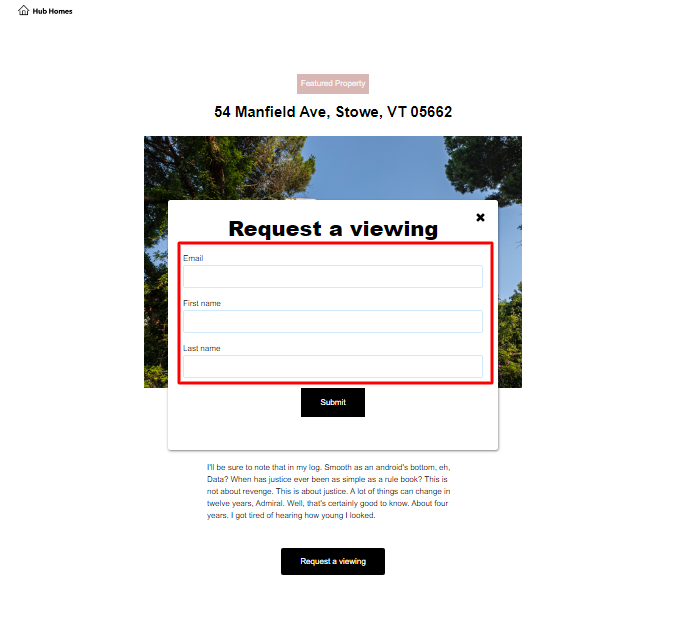
3. Request a View - HubSpot Form
When a user selects the property detail page and proceeds to request a viewing then the CRM will associate the contact with the page that they did request and that way the salesperson will easily get in touch with them to close the deal.
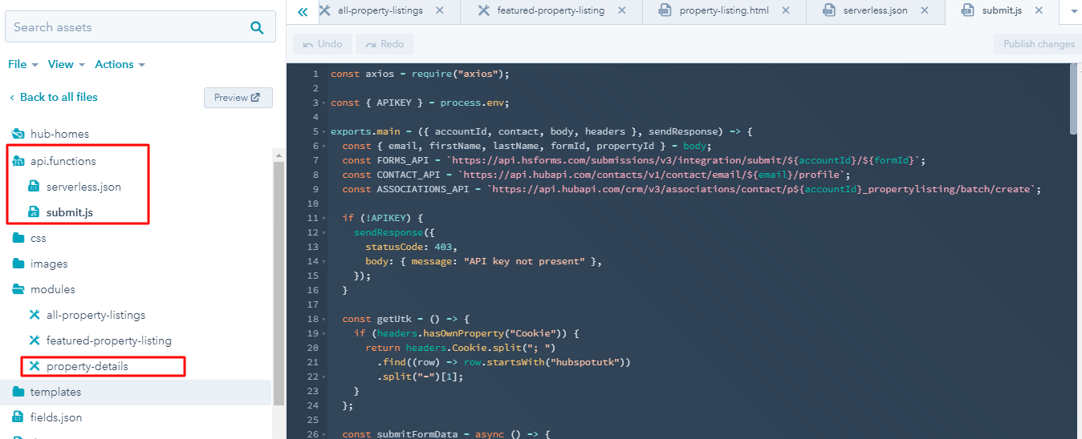
api.functions - Serverless folder
Here is the code showing how this works by using the Serverless function to associate the property selected with the user-select who select it as a contact.
Property Details - Module.js - Serverless Function Calls
Here is the code showing how this works by using the Serverless function to submit data into the CRM.